
How to Set Up a Mouse on Mac - A Simple Guide - USB, Mac Trackpad, and Magic Mouse
Setting up a mouse on a Mac may seem complicated, but it’s actually a quick and easy process. Whether you’re using a USB mouse, a Mac trackpad, or a Magic Mouse, here are the instructions to help you get set up. How to set up a mouse on a Mac? Quick and easy, nothing will break here, at most it will slow down a lot.
1. USB Mouse Configuration
A USB mouse is one of the easiest options to connect. To set up a USB mouse on your Mac, follow these steps:
- Connect your mouse : Insert the USB connector of your mouse into an available USB port on your Mac.
- Automatic recognition : macOS will automatically recognize the device. You do not need to install any additional drivers.
- Customize settings : Go to “System Preferences” > “Mouse” to adjust pointer speed, scrolling, and other options.
What about Mac mouse settings? Trackpad and Magic
2. Setting Up Your Mac Trackpad
The Mac trackpad is the standard input device on MacBook laptops. To set up the trackpad, follow these steps:
- Check your settings : Open “System Preferences” > “Trackpad.”
- Customize gestures : In the “Gestures” tab, you can enable or disable various gestures, such as scrolling, zooming, or switching apps.
- Sensitivity settings : In the “Pointer” tab, you can adjust the trackpad sensitivity to your own preferences.
Magic mouse, or other BT mouse
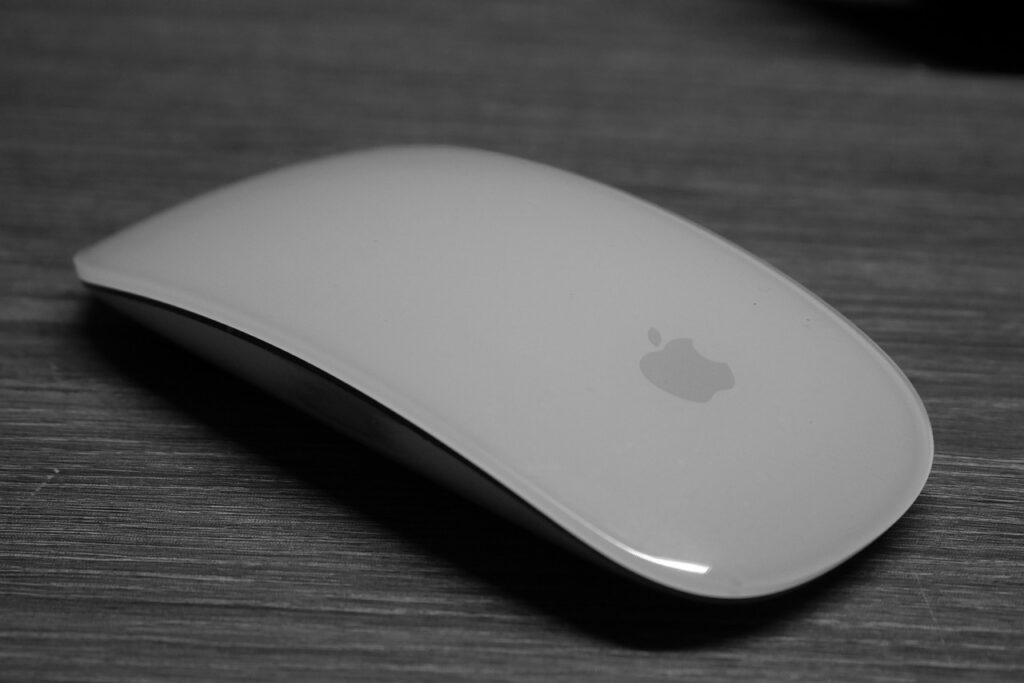
3. Configuring Magic Mouse for Bluetooth
Magic Mouse is a wireless mouse from Apple that connects via Bluetooth. To set it up, follow these steps:
- Turn on Magic Mouse : Make sure the mouse is turned on – the switch is located on the bottom of the device.
- Connect via Bluetooth : Open “System Preferences” > “Bluetooth”. Find your Magic Mouse in the list of available devices and click “Connect”.
- Customize Settings : Once connected, you can customize your mouse settings in “System Preferences” > “Mouse”.
We will write more about Magic Mouse and gesture control. This article is the first in a series of over 70 tips with instructions for customizing Mac and iOS systems.