
How to use duckduck?
In our previous article, we wrote about how to watch and listen to YouTube content without YouTube Premium on a locked screen . We also promised to talk about a browser that lets you listen to podcasts on a locked screen. Today, we’re focusing on the Duckduck browser. One of the most heavily tested by our employees, both professionally and personally. It’s most often paired with Signal Messenger, which we’ll be writing about soon. If you want to protect your privacy, automatically block website tracking, and prevent data collection about your operating system and even your location, Duckduck is one of the best civilian solutions. You don’t need to have an add-on blocker or other ad blockers installed. Duckduck is both a safer browser that doesn’t collect most of your data like other browsers, and it blocks ads in videos by itself. You can also have multiple tabs open, each with content ready to watch or listen to.
In the next article we will write about how to watch movies without ads, and in another one we will write about the duckduck browser itself.
What is duckduck browser?
What is DuckDuckGo Privacy Browser? DuckDuckGo Privacy Browser is a privacy-focused mobile browser. It’s designed to limit user tracking, block trackers, and enforce a secure connection. It prioritizes privacy by default, with no manual settings required.
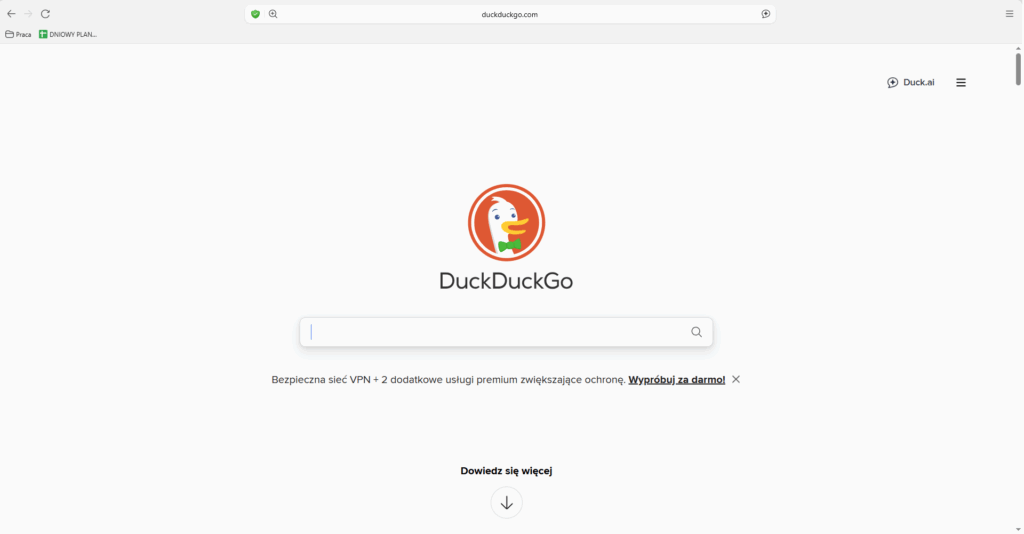
- Privacy by default: no user profiling and minimal data collection.
- Tracker blocking: tools to limit tracking by websites and ads.
- Connection encryption: Force HTTPS connections by default when possible.
- Private Search: Search without creating a user profile tailored to your preferences.
- Simple, concise environment: intuitive interface without additional, complex settings.
- Cross-platform: available on iOS and Android devices.
- No unnecessary data: Limited data collection compared to some other browsers.
Steps to get started
- Download the browser from the manufacturer’s website: https://duckduckgo.com/app (this page leads to the appropriate app stores for iOS and Android).
- Install the app on your device.
- Launch your browser and explore its privacy panel. In most cases, privacy will be enabled by default.
- Search: Type your search query into the search bar. By default, you’ll use DuckDuckGo, which doesn’t bias results based on your personality.
- Using “bangs” (search shortcuts): In the search bar, you can use shortcuts like !w, !yt, !gh to instantly search a specific page (e.g., !w Warsaw job – Wikipedia search). This is a quick way to direct your query to a specific website.
- Browsing security: in settings you can enable tracker blocking, encrypted connection (HTTPS) and the use of private tabs (tabs).
- Data management: If you wish, you can periodically clear your browsing data and search history in settings.