
How to use DO NOT DISTURB mode on iPhone
Do Not Disturb mode is a feature available on the iPhone that allows you to focus on work, relaxation, or rest, eliminating all the distractions from notifications and calls. This allows users to manage their time and increase efficiency in their daily lives. In this article, we will learn how to turn this mode on and off and what benefits it brings. We show you how to use DO NOT DISTURB mode below.
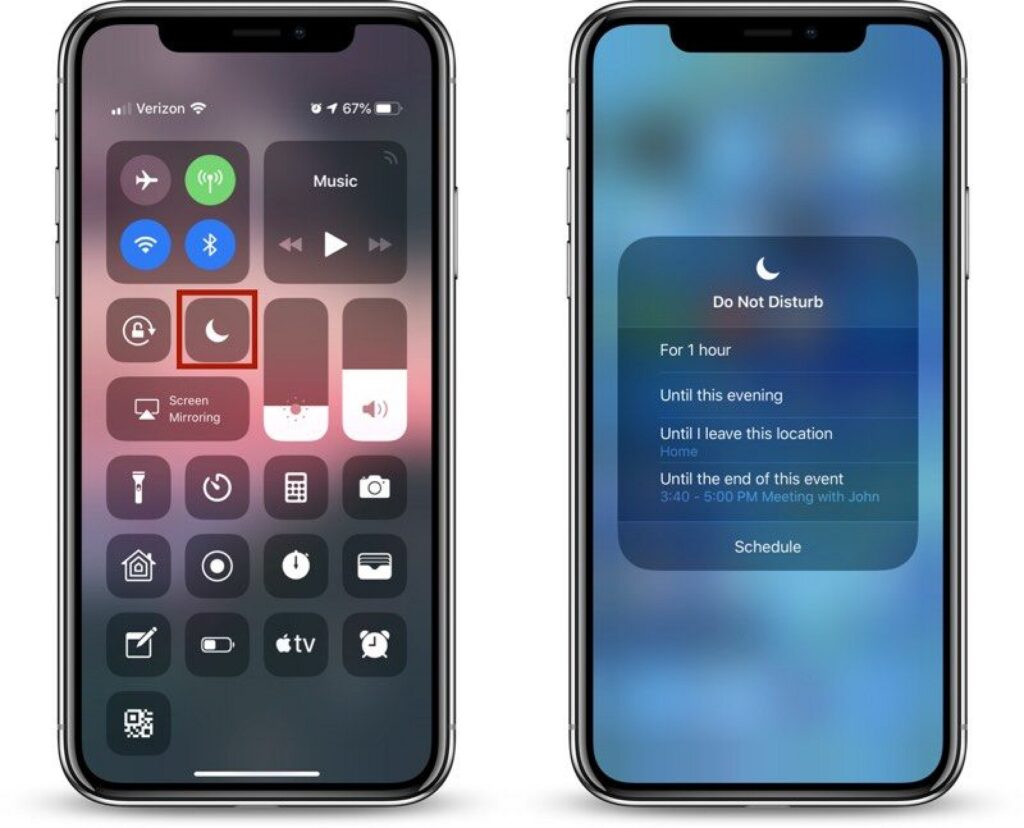
How to use DO NOT DISTURB mode on iPhone - TURN ON
- Open Settings : Find the “Settings” icon on your home screen and tap it.
- Go to the ‘Do Not Disturb’ section : Scroll down and select ‘Do Not Disturb’.
- Turn on mode : Move the slider next to “Do Not Disturb” to the on position (green).
- Configure options : You can customize the mode by setting a schedule, allowing calls from selected contacts, or turning the mode on in “Silent” mode (only when using an iPhone).
How to use DO NOT DISTURB mode on iPhone - TURN OFF
- Open Settings : Repeat the first step to go to “Settings”.
- Go to the ‘Do Not Disturb’ section : Find the “Do Not Disturb” option again.
- Turn off mode : Move the slider next to “Do Not Disturb” to the off position (gray).
- Check notifications : Once the mode is turned off, all calls and notifications will start appearing again.
How to use DO NOT DISTURB mode on iPhone - MODYFY
You can also turn on and off, and modify DO NOT DISTURB mode on iPhone via the quick shortcuts screen, by sliding it up with a finger movement from the bottom of the screen. The condition is that you have previously added this tool to the screen. If you have already added it, iPhones screens will guide you on adding people who can contact you even through DO NOT DISTURB mode on iPhone. Contacts and allowed apps/notifications are exceptions that are not silenced while DO NOT DISTURB mode is on.