
Share screen using messenger
Many people already have a Facebook account. And with the Messenger app supporting multiple platforms, you can call people with Android and Windows devices. With Screen Sharing, you can display precisely what is displayed on your iPhone’s screen throughout an energetic video conversation, which can be useful for sharing presentations for work or other things with friends.
To use this screen sharing feature, your iPhone must run iOS 11 or later to have the native screen recording feature. Make sure you have updated Messenger to the latest version of the App Store.
To share your screen using Messenger, do the following :
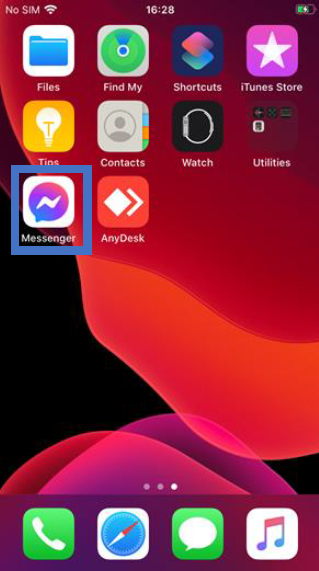
1: Open the Messenger app on your iPhone
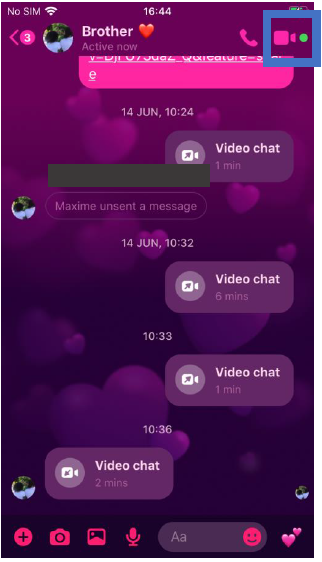
2: Start a video call by selecting one or more contacts and tapping the camera icon.
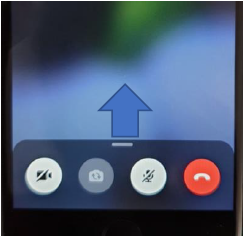
3: Once on the call, swipe up on the toolbar at the bottom (where you find the icons for hanging up or turning your mic off).
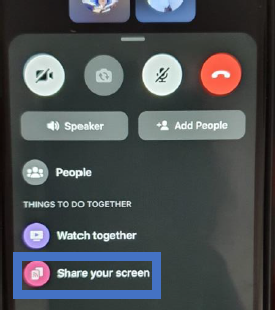
From the expanded menu, tap Share your screen
4: A window will show up, you can tap “Start Broadcast” to start sharing your screen by
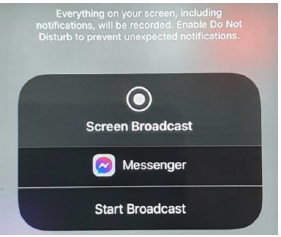
From that moment on, other people on the video chat will be able to see a live view of everything on the screen of your phone. However, some applications block the sharing of visual content during screen sharing; Banking applications, password manager or credit card. Screenshots are also subject to this rule on these applications.
To end video sharing, go to the video conversation, and press the Stop sharing button.