
HOW TO CREATE APPLE ID ?
In this article you will see how to create new Apple ID without a credit card.
First you will need to get in your hand in a device but in this tuto we are going to use an iPhone so you can also see how you can configure an iPhone for the first time.
1 : First press home to start

2 : Then select your language

3 : Your country
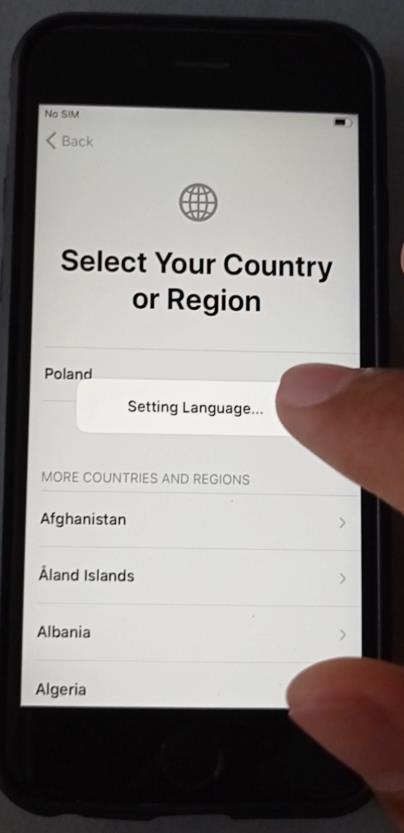
We are doing a very simple tuto which only show the basis on how to configure your iPhone for the first time.
4 : So we will just set up manually the iPhone

Now you need to connect your device to a Wi-Fi network !
5 : Find the name of your network and put the password. Then click the “next” button.
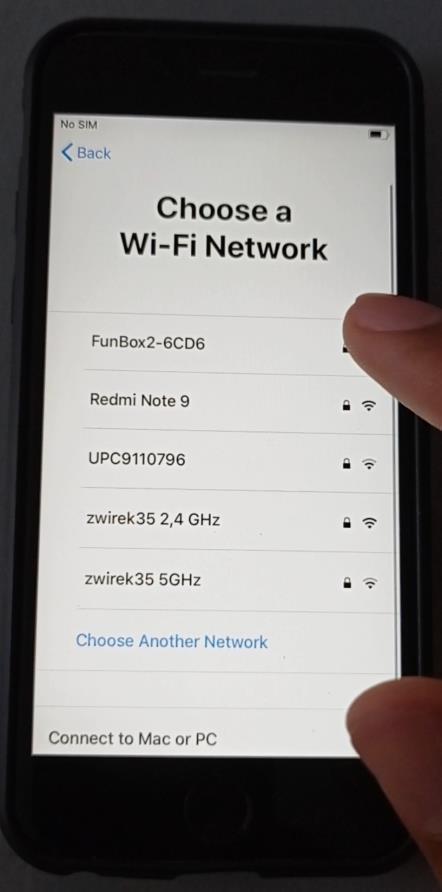
6 : The iPhone will search for some updates, just wait until it’s finish.

7 : Your iPhone is now activated. Tap Continue or Learn to read the Data & Privacy.
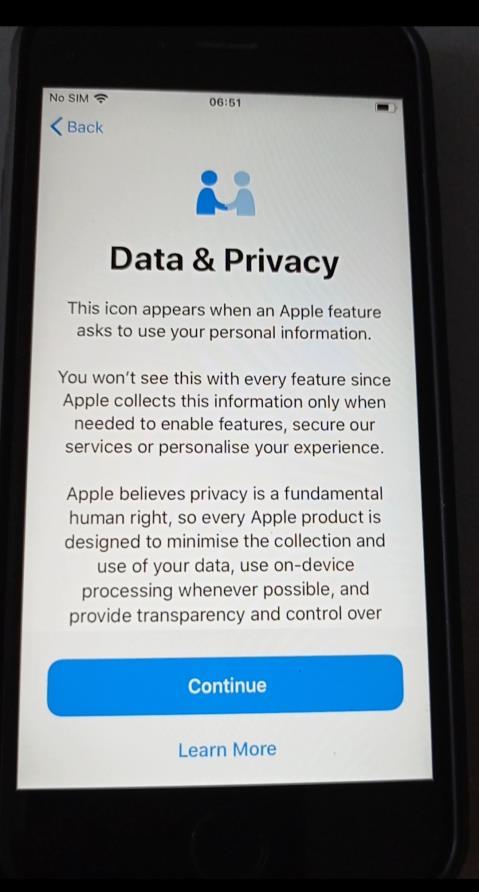
In the next step, the iPhone will ask you if you want to use your fingerprint to unlock it. But you will set it up later.
8 : Just tap continue

9 : And choose “Don’t Use”
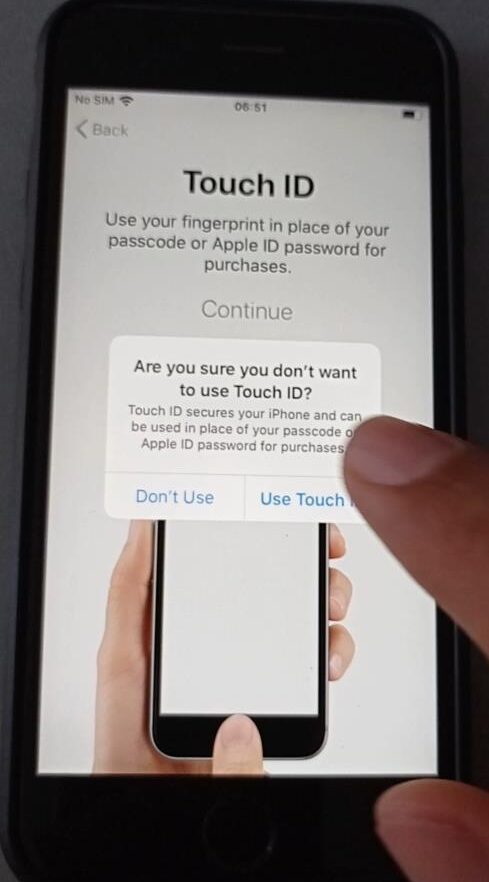
10 : Now you can create a Passcode . It used to secure your iPhone. Do not forget it, because it will be very useful to unlock your iPhone .

11 : On the next screen, you will be asked if you want to transfer previous data from a previous devices. But for this to be your first time using an Apple device, you will just need to tap “Don’t Transfer Apps & Data”
Starting now, you are going to see how to create new Apple ID.
13 : Now you will need to create an Apple ID. Tap “Forgot password or don’t have an Apple ID?“.

14 : We don’t have an Apple ID so we are going to create a new one. Tap Create a Free Apple ID.

15 : Now you need to enter your personal data. Select your birthday and enter your name. Tap Next.

Now this is the important step. You will set the email address and the password of your account.
Note that the email address that you enter will be the login for your Apple ID.
Tap “Use your current email address“, or tap “Get a free iCloud email address.“

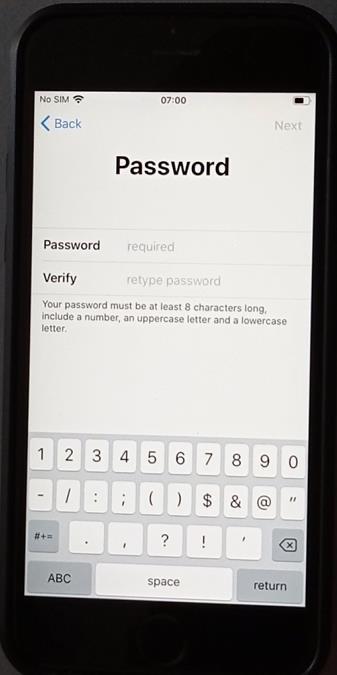
16 : Now you need to create a password for your Apple ID.
Your password should answer to certain criteria to be accepted. It must be composed at least 8 characters long, include number, an uppercase and a lowercase letter. If it does not answer the criteria, you will get a message saying that your password is too weak.
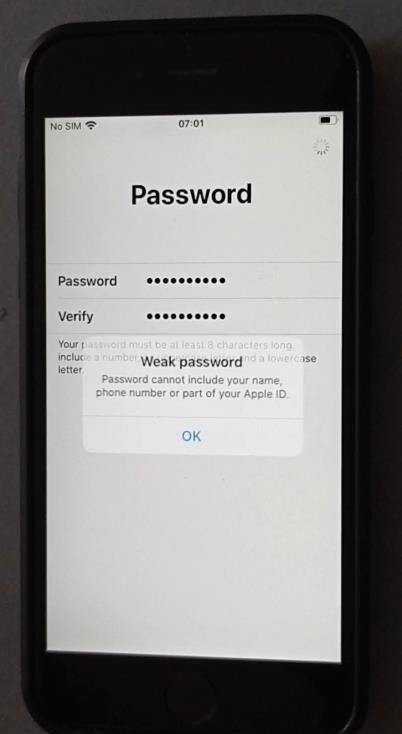
18 : When you successfully create your password, You will be asked to enter your phone number, and you will received a verification code to make sure that you entered the right phone number.
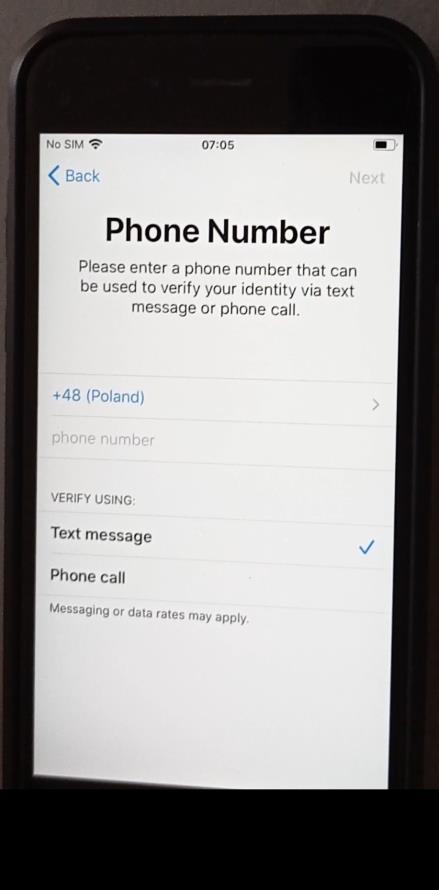

Note: It’s important to set a phone number because if you ever forget your Apple ID password, you can change it by tapping on “Forget my password” on the login menu, and the phone number will be used, to verify the authenticity of that action.
19 : Now you need to agree the terms and conditions, and your Apple ID will be successfully created!