How to make and receive a call with an iPhone
To make and receive a call with an iPhone, you must use the Phone app.
The Phone app has several features to help you manage incoming and outgoing phone calls, as well as voicemail.
It is even possible to block people you no longer want to talk to, or complete stranger you never wanted to talk in the first place.
This is the Phone app; you can find it at the bottom left of the Home screen.
Tap the app to start it.
When the app start, still at the bottom, you can see some icons which will allow you to move in the app.

There are two ways to make a phone call from the Phone app.
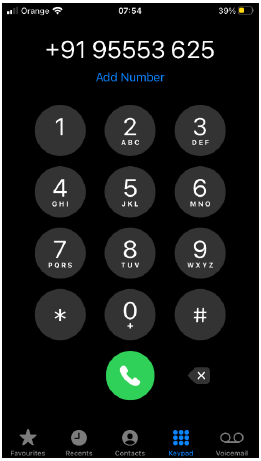
You can enter a phone number manually,
1. Tap Keypad at the bottom of the screen,2. Then enter the phone number you want to call.
3. Tap Call to place the call.
Or you can call someone from your Contacts
-
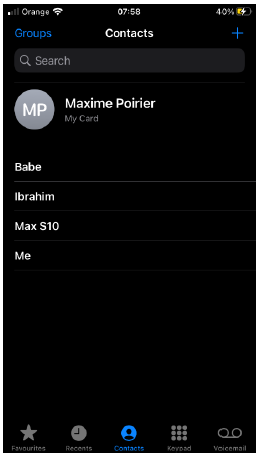
- Tap Contacts at the bottom of the screen,
- Then tap the name of the contact you want to call
- Tap the contact’s phone numberto place the call
- When the call is finished, tap End to hang up.
If you frequently call the same contacts, you can add them to your Favorites list. You may find this more convenient than selecting a contact from your Contacts list.
To add an existing contact as a favorite,
1. Open the Phone app,2. Select favorites,
3. Then tap the + button.
Active call options
There are several actions you can take during a phone call.For example, you can choose to add another person to the conversation or switch your voice call to a video call.
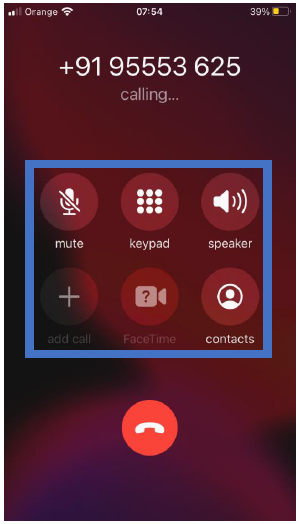
Answering and declining calls
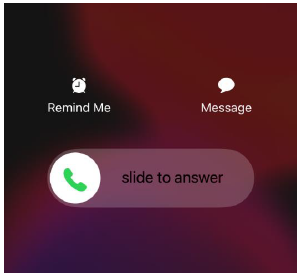
When you receive a phone call, you can choose to answer or decline it.
To answer an incoming call, slide the green bar. If you want to silence the ringer, press the Sleep/Wake button.
To decline the call and send it directly to voicemail, press the Sleep/Wake button twice
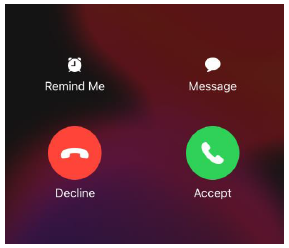
If you’re already using your iPhone, you’ll tap Answer to answer the call or Decline to decline it
Block a number
The first thing you need to do is to open the Phone app on your iPhone.
Next, tap the “i” icon in the phone tab.
This icon will appear under the Favorites, Recents, and Voicemail tabs on the Phone app on iPhone.
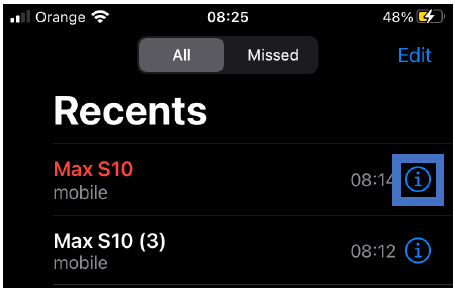 Once you tap into the caller’s details, scroll down and tap “Block
this Caller.”
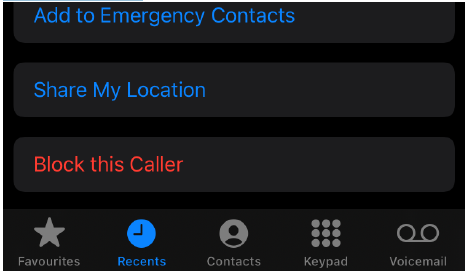 A confirmation will appear to block the number. Tap “Block
Contact” and you’re done! The number will no longer be able to call you, message you, or
FaceTime call you.
To unblock numbers that you have blocked:
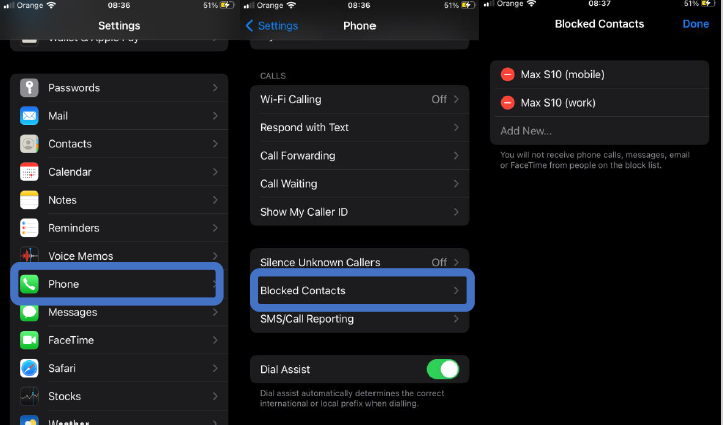
1. Tap Settings on your home screen2. Tap Phone app setting
3. Tap Blocked Contacts to manage numbers you have blocked